
Scope: whole document.
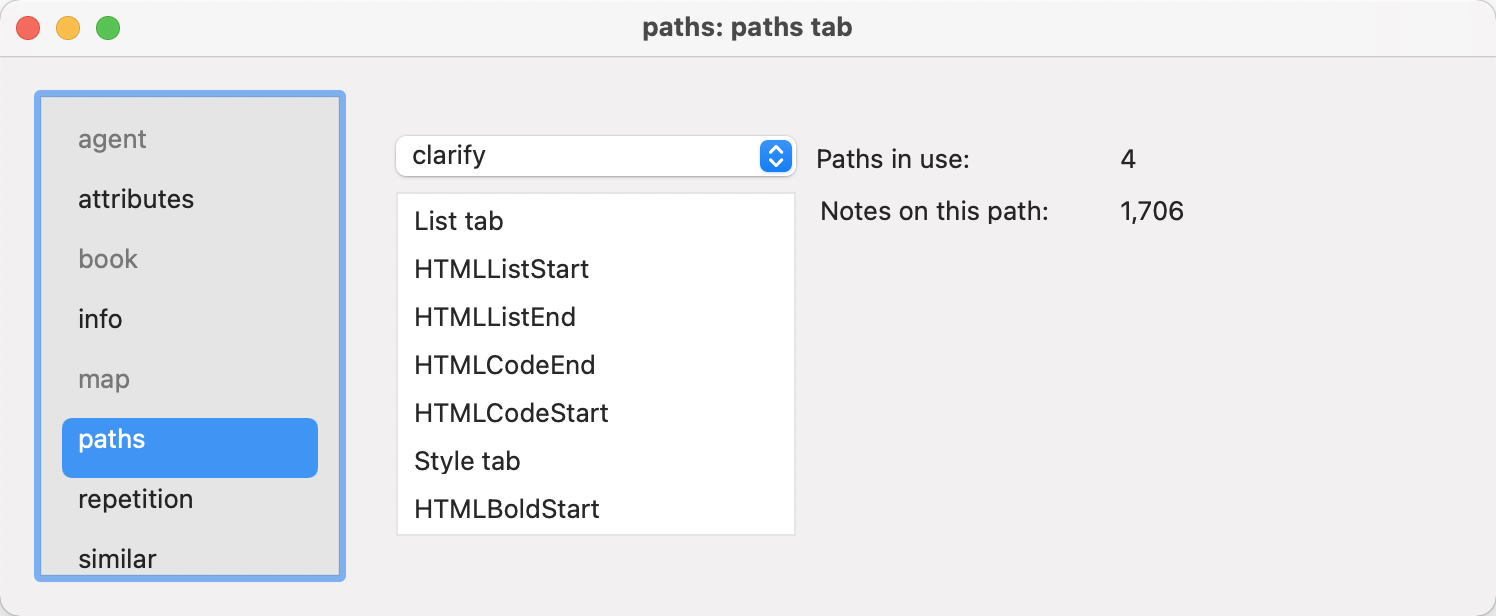
The paths panel displays the number of distinct link types defined within the current document. These are listed in a pop-up control, at top centre of the dialog. These discrete link types added/edited in the Links Inspector.
Here, 'path' has a slightly different meaning to that used in the context of a note's address ($Path) in the document outline. In this context, a link type's path as all the notes with one or more inbound or outbound links is the selected link type. Be aware that a document may contain more than one discontinuous such network, i.e. clusters of links of the select type but with no interconnecting link.
The information is whole-document-scope and can be accessed from any note's Get Info, even if that note does not use the link type of interest.
A pop-up list shows all the links types defined in the document that have one or more links of that type in use. Selecting a link type from the pop-up, the list panel will reports(remember—for all such paths in the whole document):
- Paths in use (in this document). The overall number of discrete link types being used with links in the current document—so, not a count of discrete links within the document. This list may not include every link type defined in the current document (i.e. as seen in the Links Inspector) because some types may not yet be used for linking.
- Notes on this path (i.e. for the selected link type). The count of notes (including agents, etc.) with an inbound or outbound link of this type (i.e. 'in' the path). As that list includes both the source and destination of such links, the list will thus show more notes than the discrete number of links.
- A scrollable listing (beneath the popup) of the titles ($Name) of all notes in the selected path (i.e. all the notes in the count in the above bullet). A tooltip for each item shows its full location path ($Path) in the document. Double-clicking the item will select that item. If in pop-over mode, the pop-over now attaches to the newly selected note.
To see the count of overall internal links (i.e. both basic and text) in the document see the Info Inspector. To see every link type defined in the current document, whether used or not, see the Links Inspector. To see the number of links starting in the current note (and by basic/text/web breakdown, see the source note's Browse Links.
Using the paths dialog for link triage
Given that the information is whole document, start from any note but 'tear off' the op-over to be a standalone dialog as this makes for easier working.
If intending to add new link types, add these to the document via the Links Inspector before trying to use the new values. A link type can be renamed by editing in the Link Inspector: all links using that link type immediately use the new name (some open views might need refreshing). If stopping use of a link type, i.e. where no links use the link type, it still remains defined and available. To remove the link type entirely, do so in the Links Inspector. Deleting a link type also deletes any current links using the link type, so work with care. If merging or retiring a link type, use the Get Info:paths to ensure no links still use the unwanted type, by checking it is not listed in the dialog's pop-up list. If still listed, select that item and then work through the remaining links either setting a new link type or deleting the links. Only then, when there are no links needing edit is it appropriate to delete the link type, unless all links of that type are unneeded. In the latter case the link type and all the links using that type can be deleted at the same time.