
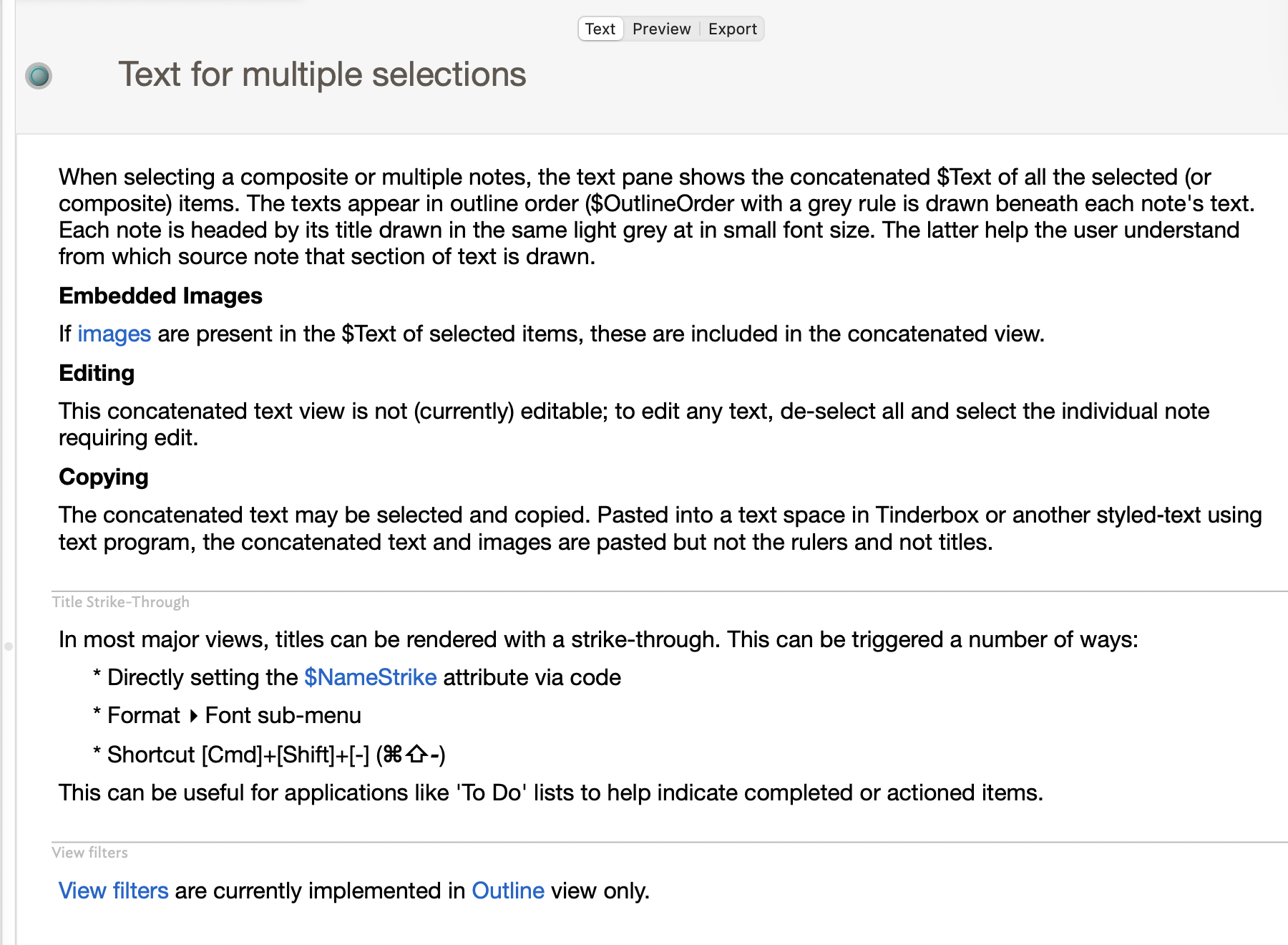
When selecting a composite or multiple notes in the view pane, the text pane shows the concatenated $Text of all the selected (or composite) items. From v11.7.0, when multiple notes are selected, Tinderbox concatenates their texts in the text pane. When the selection exceeds a fixed limit, no texts are displayed: from v11.8.0 the limit is 300 notes, previously it was 30. When exceeding the limit, the text pane is greyed out and a label 'N selected notes' is shown, where N is the count of selected notes.
Text pane title area
This shows the title of the first (by $OutlineOrder) in the title bar
Delimiting of individual selection items in the display
The texts appear in outline order ($OutlineOrder) with a grey rule drawn beneath each note's text (i.e. at the end of its $Text). Each note (except the first) is headed by its title drawn in the same light grey, immediately below the preceding rule and in a small font size. Despite the layout, the rule is the end of the previous note in the selection and the title the beginning of the next note. These dividers help the user understand from which source note that section of the concatenated text is drawn.
Note titles cannot be edited
The individual note titles ($Name) within the main display cannot be selected or edited. The title of the first selected note, shown in the main title bar, remains editable
Editing $Text content
Editing of $Text's text content is only permitted inside the scope of a single any note. To start editing a different note's $Text, move the insertion cursor location into that note's content in the text pane. Arrow key cursor movement only works within the scope of a single note's text ($Text).
From v11.8.0, during text editing with multiple notes selected, Tinderbox draws each segment with its own $TextColor and $TextBackgroundColor.
Selection for Copy/Paste/Cut
- Copy. Selections that cross note boundaries, as well as only within single notes may be made to copy content and pasting can only occur within a single note's content.
- Cut. Cut operations are not permitted in the display mode, regardless of scope of selection.
- Paste. Pasting of new content can only be made within a single notes, whether at an insertion point or to replace a selection.
Selection for text formatting
Counter to the above, the style/formatting of text be modified in selections either within single note's content or across note boundaries. This facilitated changes in font or type size, etc., across an extended range of text.
Images embedded in $Text
If images are present in the $Text of selected items, these are included in the concatenated view.
Legacy notes
- This display feature was first added in v7.0.0, alongside composites, so that the full text of the composite could be read together. The concatenated text display was also available for ad hoc multiple-note selections.
- v9.5.0 introduced the ability to edit the $Text of notes in this display form and also to edit text styles.
Previously, every selected note was rendered into the list. Large selections are often used by people with no interest in this text display mode, so a default to 'all' could be tiresome, especially if some notes had very large text and were not intended for display in this style.
See also—notes linking to here: