
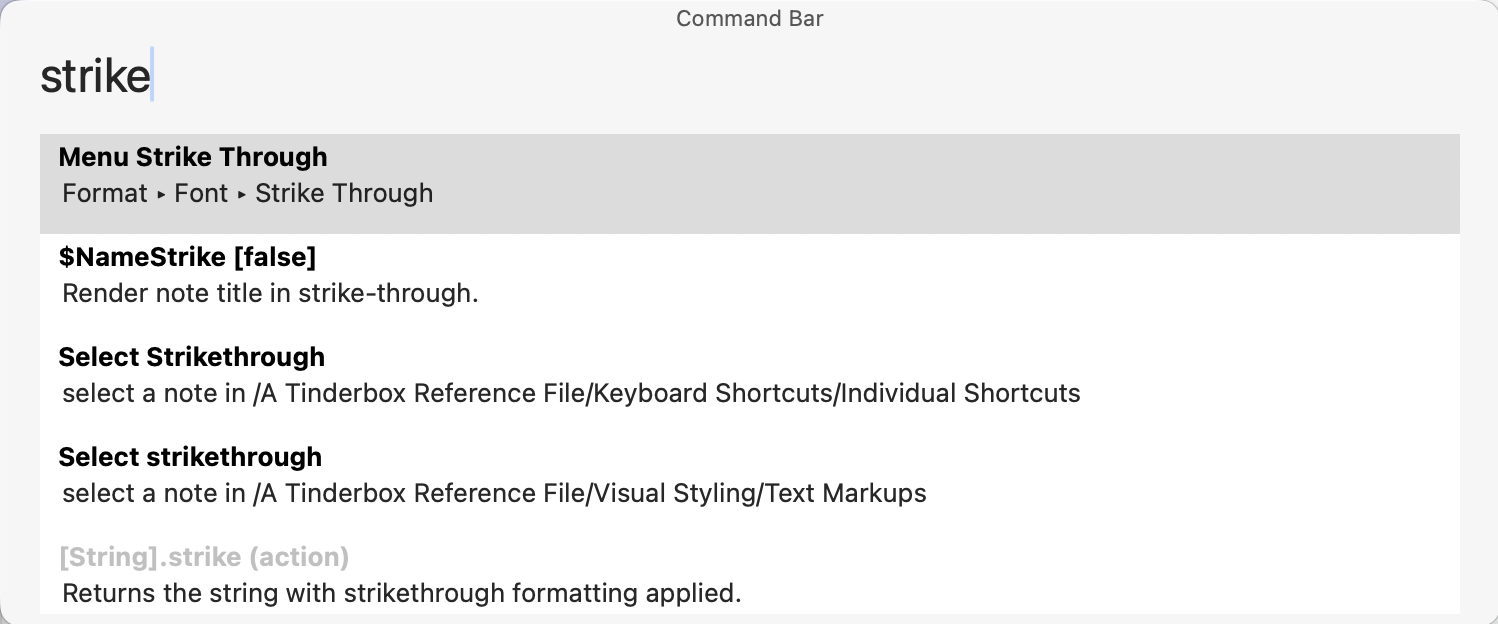
The command bar gives you keyboard access to many Tinderbox commands and lots of Tinderbox information. Its initial placement is tied to the (frontmost) main document window.
The Command Bar displays only fairly good matches, instead of displaying every match sorted by quality of the match. From v11.7.0 , the Command Bar uses a much better fuzzy pattern matcher based on algorithms for genomic search. For example, "ComBar" matches "CommandBar".
Searches are case-insensitive.
From v11.7.0, the Command Bar remembers previous commands. When typing in the command bar, up-arrow navigates backwards to the previous command's string. A second up-arrow recalls the command string prior to that. Down-arrow moves forward through the history. The Return key restores the conventional meaning of down-arrow and allows keyboard selection from the results table.
To open the command bar, select menu Help ▸ Commands Bar (⌘⇧-U)
Type any word or phrase to see available topics as a list. Scroll the list to see more matches. Either click an item to perform the selected item. Or use arrow ↑ and ↓ keys move through the list and press Return to perform the selected item. Home and End keys move to the first and last items, respectively. Esc dismisses the command bar, as does clicking outside the command bar.
Various commands can be used:
- Open… Lets you open any Tinderbox document you have recently used, or any Inspector pane. Type "Open " followed by part of the document name. Or, type "Open Border Inspector" to open a particular Inspector sub-pane.
- Select… Lets you select any note in the current document; if possible, Tinderbox will scroll to make the note visible. Type "Select" and the note's path or name (if the note's title is unique in this document).
- Explain… Provides instant access to some key places in aTbRef, e.g. to explain Tinderbox actions and their usage. For example "Explain Menus". To access more specific topic like an operator, simply type its name, e.g. "collect_if".
- View… Access some notable Tinderbox tutorial videos.
- Attribute values. Type the attribute name. Clicking on a command bar item that describes an attribute opens the Quickstamp Inspector for that attribute, allowing quick setting or reading of that attribute value for the current note.
- Check update status.g. "Can I update"
From v11.7.0, a number of improvements were added.
Understanding terminology for the Command Bar
Contextually, some of these might all be the same:
- item. An 'item' is generally referring to anything that may be listed in the Command Bar as the result of typing in a search string (or 'prompt')
- article. Some matches (i.e. items) may be generated by notes. These may display their $Text as a preview window or result in some generic action or command.
- commands. These are generally notes configured to do something if selected in the Command Bar as opposed to merely previewing their $Text. For instance they might open a URL or another application on the user's Mac.
- action. Some notes, for example custom commands, may be configured to run action code if clicking in the search match list.
- document. Matched notes and the target of actions are in the scope of the current active TBX document.
Further detail:
Legacy
Prior to v11.7.0, this was called Commands & Info….
See also—notes linking to here: